How To Generate A Gmail App Password For Smtp Setup (step By Step Guide)
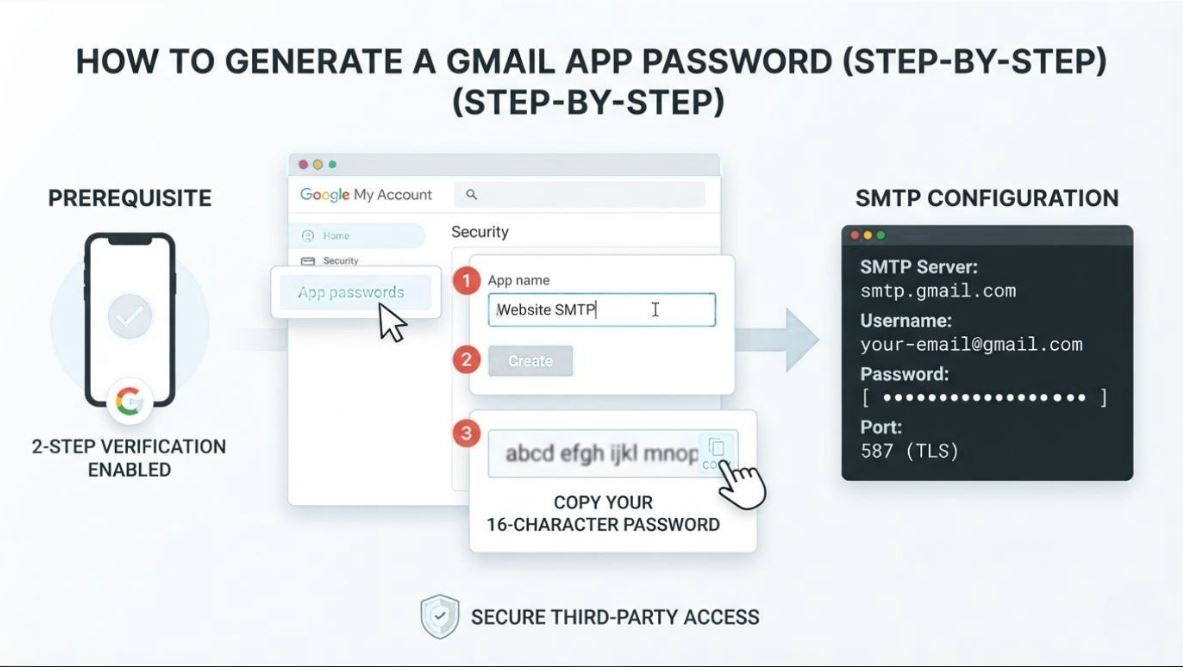
How to Generate a Gmail App Password for SMTP Setup (Step-by-Step Guide)
What is a Gmail App Password?
A Gmail App Password is a 16-character passcode that allows third-party apps or devices to securely access your Google account. It is mainly used when setting up SMTP (Simple Mail Transfer Protocol) for sending emails from applications.
Important: You must enable 2-Step Verification on your Google account before generating an App Password.
A Gmail App Password is a 16-character passcode that allows third-party apps or devices to securely access your Google account. It is mainly used when setting up SMTP (Simple Mail Transfer Protocol) for sending emails from applications.
Important: You must enable 2-Step Verification on your Google account before generating an App Password.
Step-by-Step Guide to Generate Gmail App Password
Follow these simple steps:
Follow these simple steps:
1. Go to Your Google Account
Visit myaccount.google.com and sign in using your Gmail credentials.
Visit myaccount.google.com and sign in using your Gmail credentials.
2. Open Security Settings
From the left-hand menu, click on Security to access your account’s security options.
From the left-hand menu, click on Security to access your account’s security options.
3. Enable 2-Step Verification
Under the "Signing in to Google" section:
- Click on 2-Step Verification
- Follow the instructions to enable it (via mobile number, authenticator app, etc.)
⚠️ Note: App Passwords will not work unless 2-Step Verification is enabled.
Under the "Signing in to Google" section:
- Click on 2-Step Verification
- Follow the instructions to enable it (via mobile number, authenticator app, etc.)
⚠️ Note: App Passwords will not work unless 2-Step Verification is enabled.
4. Open App Passwords
Once 2-Step Verification is activated, click on App Passwords
5. Generate the App Password
Click on Generate.
Google will now create a 16-character App Password specifically for your application.
Click on Generate.
Google will now create a 16-character App Password specifically for your application.
6. Copy and Save the Password
- Click Copy
- Store it securely (you won’t be able to see it again)
- Click Copy
- Store it securely (you won’t be able to see it again)
SMTP Configuration Settings
Use the following details to configure SMTP in your application:
- SMTP Username: Your Gmail address
- SMTP Password/App Password: The 16-character App Password
- SMTP Host: smtp.gmail.com
- SMTP Port:
- 587 (TLS)
- 465 (SSL)
Use the following details to configure SMTP in your application:
- SMTP Username: Your Gmail address
- SMTP Password/App Password: The 16-character App Password
- SMTP Host: smtp.gmail.com
- SMTP Port:
- 587 (TLS)
- 465 (SSL)
Final Thoughts
Using a Gmail App Password is the safest and most reliable way to connect your Gmail account with third-party tools. It protects your main password while still allowing secure access for sending emails via SMTP.
Whether you're setting up email notifications, marketing automation, or a website contact form, this method ensures both security and functionality.
Using a Gmail App Password is the safest and most reliable way to connect your Gmail account with third-party tools. It protects your main password while still allowing secure access for sending emails via SMTP.
Whether you're setting up email notifications, marketing automation, or a website contact form, this method ensures both security and functionality.
Pro Tip
If you ever feel your App Password has been compromised:
- You can revoke it anytime from the App Passwords section
- Then generate a new one instantly
By following the steps above, you can quickly set up your Gmail SMTP and start sending emails securely from your application.
If you need help setting this up for your website or tool, feel free to reach out!
If you ever feel your App Password has been compromised:
- You can revoke it anytime from the App Passwords section
- Then generate a new one instantly
By following the steps above, you can quickly set up your Gmail SMTP and start sending emails securely from your application.
If you need help setting this up for your website or tool, feel free to reach out!